

Time Off & Personal Events
Two related tools live here. A personal event blocks time on your own calendar — nothing more. A time-off request asks your admin for approval to be off work during a specific window. Use the right one for the job.
Two tools, one decision
ScheduleForward separates “stuff I want on my calendar” from “stuff I need approved.” Both live in the same place — but they do different jobs.
Personal events
For you only. Doctor’s appointment, kid’s soccer game, anniversary, weekend trip — anything you want to remember. They appear on your calendar with a custom icon and color, and never go to anyone for approval.
Time-off requests
For work. When you can’t cover shifts during a date range, submit a time-off request. Your admin reviews it and approves or denies. Approved requests protect that window from being scheduled.
Creating a personal event
Tap the + on a day
From My Calendar or My Schedule, tap the + button on the day you want the event. On mobile, tap the day header to reveal the + button.
Name it & pick an icon
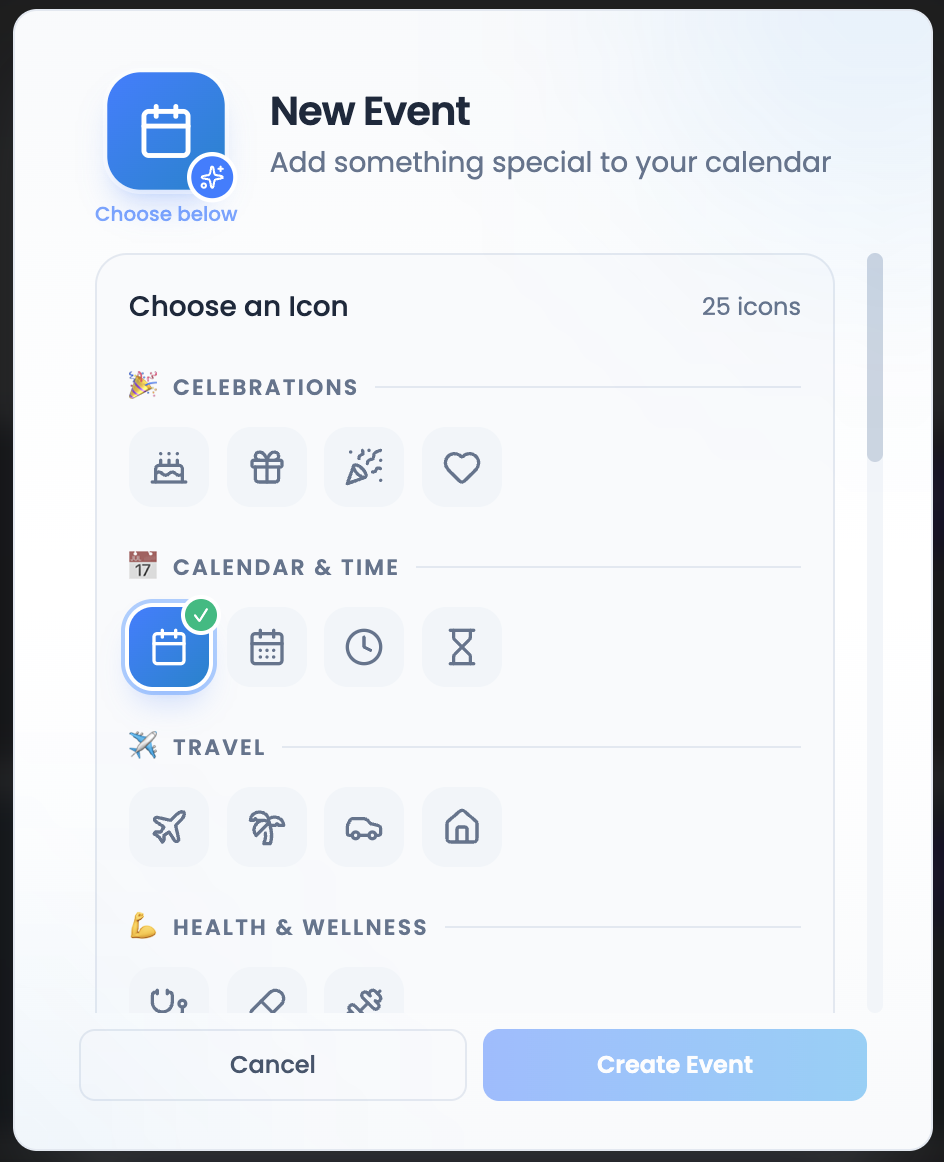
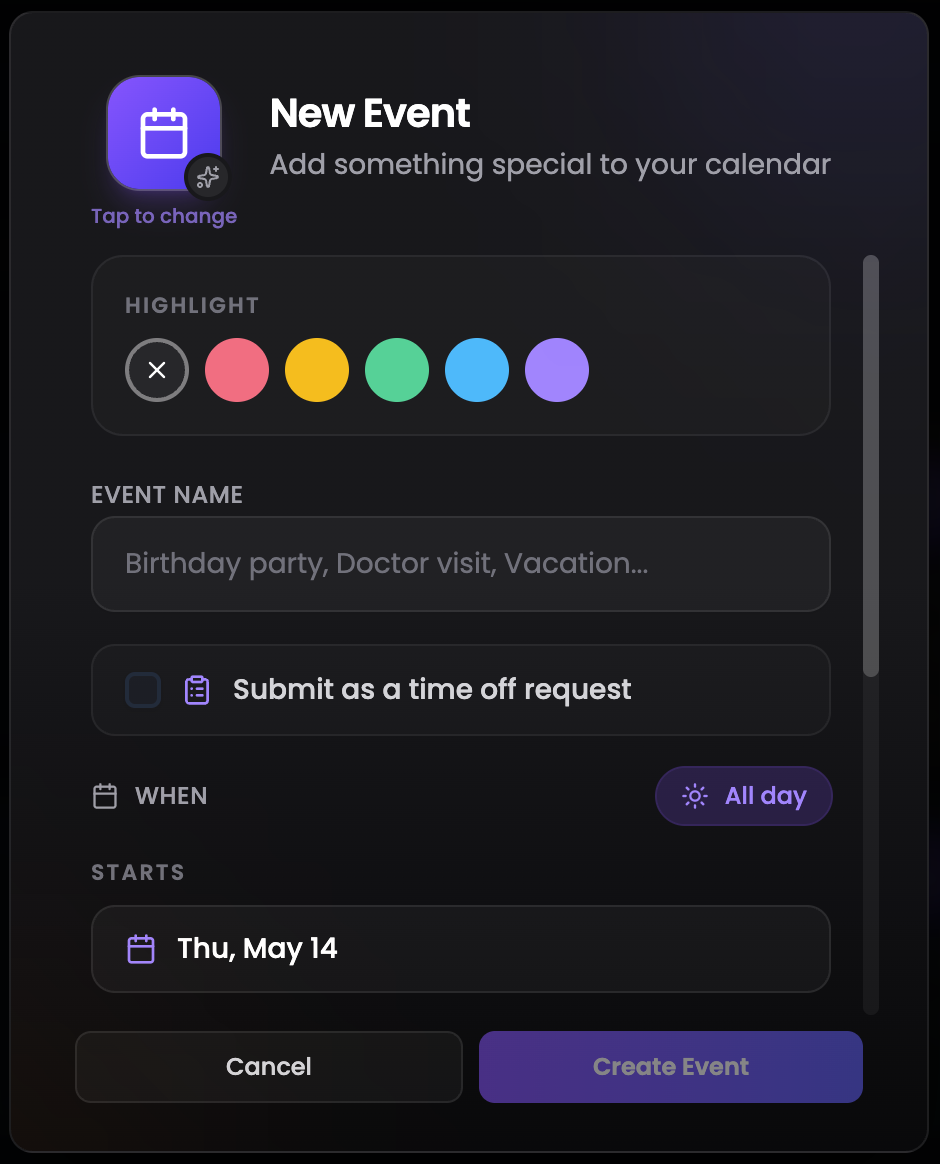
Give it a friendly name (“Mom’s birthday”, “Annual checkup”, “Beach week”). Pick an icon and a highlight color to make it pop on the calendar.
Set the dates
Choose an all-day event or set start/end times. Multi-day events automatically span across the calendar.
Save
Hit save and you’re done. The event is on your calendar — and only your calendar.
Submitting a time-off request
A time-off request always rides along with a personal event. Create the event for the dates you want off, check the time-off box, and your admin gets pinged. The event lives on your calendar — the request lives in your admin’s queue.
Create a personal event
From My Calendar or My Schedule, tap the + on the day you want off. Fill in the name and date range like any other personal event.
Check “Submit as a time off request”
Tick the Submit as a time off request checkbox inside the event dialog. That’s what turns a private personal event into a request your admin actually sees.
Pick the sub-group(s) & reason
A confirmation dialog opens. If you work in multiple sub-groups, pick which one(s) this applies to. Add an optional reason — short notes like “Family wedding” or “Surgery recovery” usually get the green light.
Submit
Send it. The personal event lands on your calendar immediately, and the request shows up in your admin’s queue. Track its status from Time Off Requests on your dashboard or the avatar menu.
Tracking what happens next
Your time-off requests live across five tabs:
- Pending — waiting for your admin.
- Approved — you’re off, schedule is protected.
- Denied — talk to your admin or submit a new range.
- Cancelled — you (or your admin) called it off.
- Expired — the request sat past the start date without action.
Common questions
What’s the difference between a personal event and a time-off request?
A personal event is just for you — it blocks time on your calendar (vacation, doctor’s appointment, kid’s recital) so you remember it’s there. A time-off request goes to your admin for approval and signals that you can’t work shifts during that window.
How long until my admin approves my time off?
It depends on your organization, but most admins try to respond within a few days. You’ll get an email when there’s a decision, and you can always check the status in Time Off Requests.
Can I cancel a request I already submitted?
Yes — open the request and tap Cancel. If it’s already approved, your admin may need to be told so they can adjust the schedule.
My request was denied. What now?
You can submit a new request for a different window, or talk to your admin to understand why. Sometimes a small shift in dates makes the difference.
Can I have an event without making it a time-off request?
Absolutely. If it’s just for you (no need to block work), create a personal event from your Calendar or My Schedule. It stays private to your view.
What icons can I use?
Lots! You can pick a plane for travel, a cake for birthdays, a stethoscope for medical, party poppers, hearts, stars — the whole library. Pick what makes the event feel right at a glance.