

Switching the primary
Pick a new primary
Find the verified email you want as your primary and tap Make primary. Confirm. All future notifications now go there.
ScheduleForward lets you tie multiple email addresses to one account. One is your primary — that’s where notifications go — and the rest are aliases you can sign in with.
Life happens. You change jobs, or you’d rather check personal email on the weekend, or your team uses one alias and your bank statements come to another. Multiple emails lets you keep one account, no matter what.
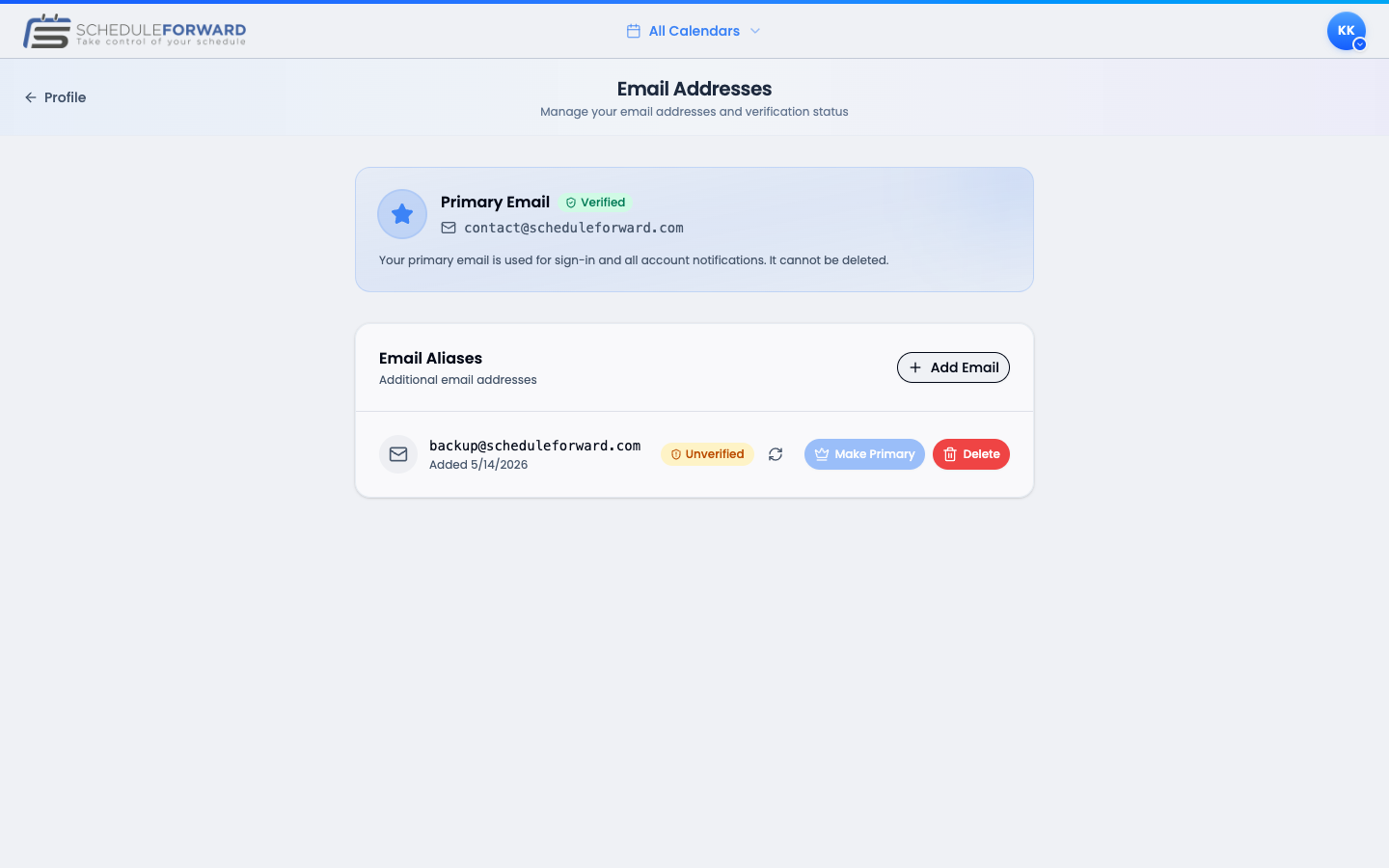
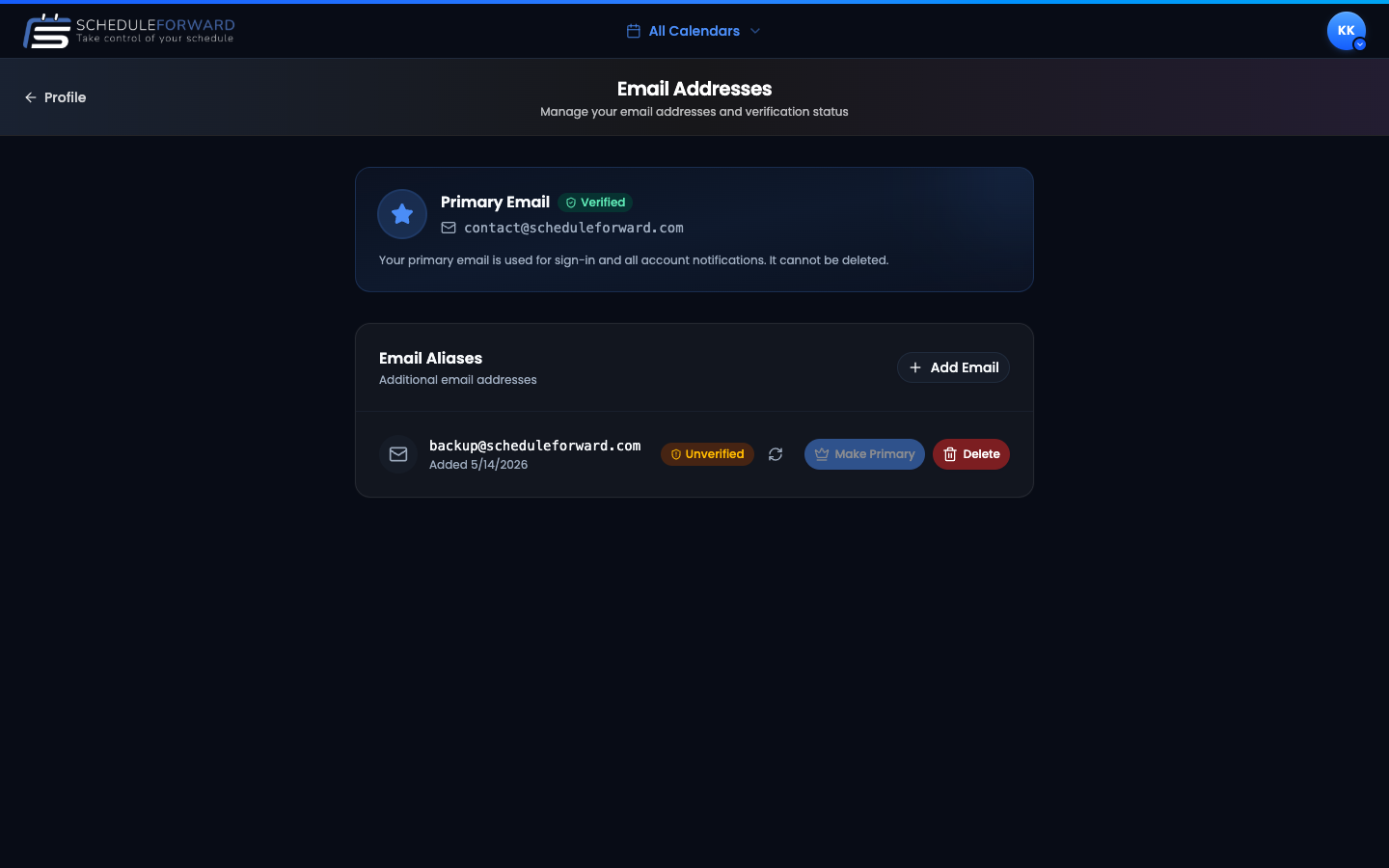
On the Email Addresses page, hit Add email, type the address, and submit.
We’ll send a verification link to the new address. Click it to confirm ownership. Unverified emails can’t be used for sign-in or as the primary. If the verification email doesn’t show up, hit the small refresh icon (↻) next to the unverified email to send it again.
Once verified, you’ll see a green checkmark. You can now sign in with it, or make it primary.

Find the verified email you want as your primary and tap Make primary. Confirm. All future notifications now go there.
Any non-primary email can be removed. A dialog opens and asks you to type the email address exactly to confirm — a deliberate safeguard so you can’t delete the wrong one by reflex. Once removed, the address can no longer be used to sign in.
A common case: your work email got you on ScheduleForward, but you want notifications going to your personal email so you don’t miss anything off-hours. Or you’re changing jobs and want to keep your account while you transition.
Whichever one is set as your primary. Make sure the primary is the inbox you actually check.
Yes — once it’s verified, you can sign in with any email tied to your account.