

Calendar Sync
Calendar Sync subscribes your phone or computer’s calendar app to ScheduleForward. Your shifts, trades, and personal events show up automatically in Apple Calendar, Google Calendar, Outlook — wherever you already check your schedule.
Why bother syncing?
You already check your phone calendar fifty times a day. Calendar Sync makes sure your shifts are right there with everything else — birthdays, meetings, dinner plans. No more switching apps to find out what time you start tomorrow.
On your iPhone or iPad
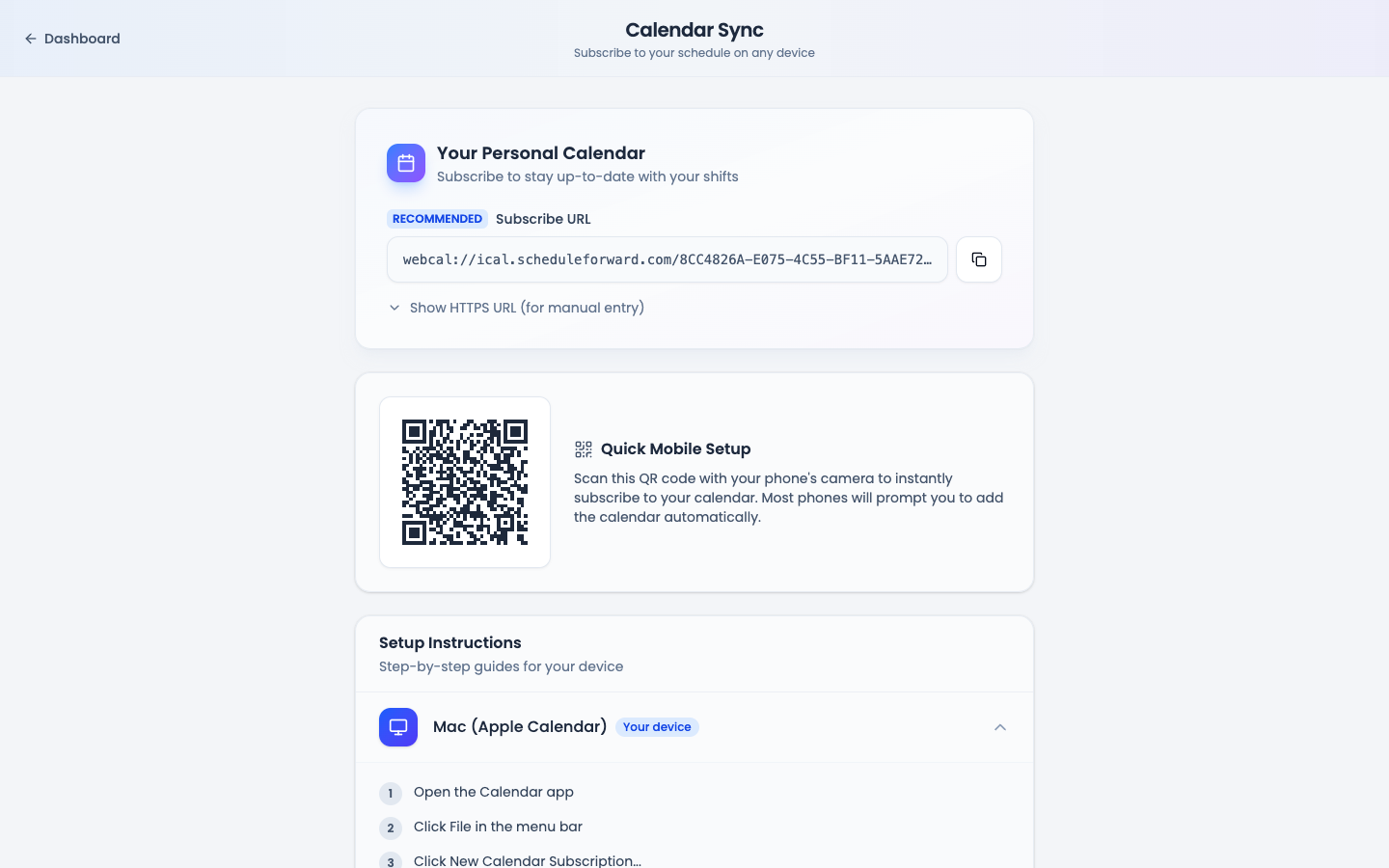
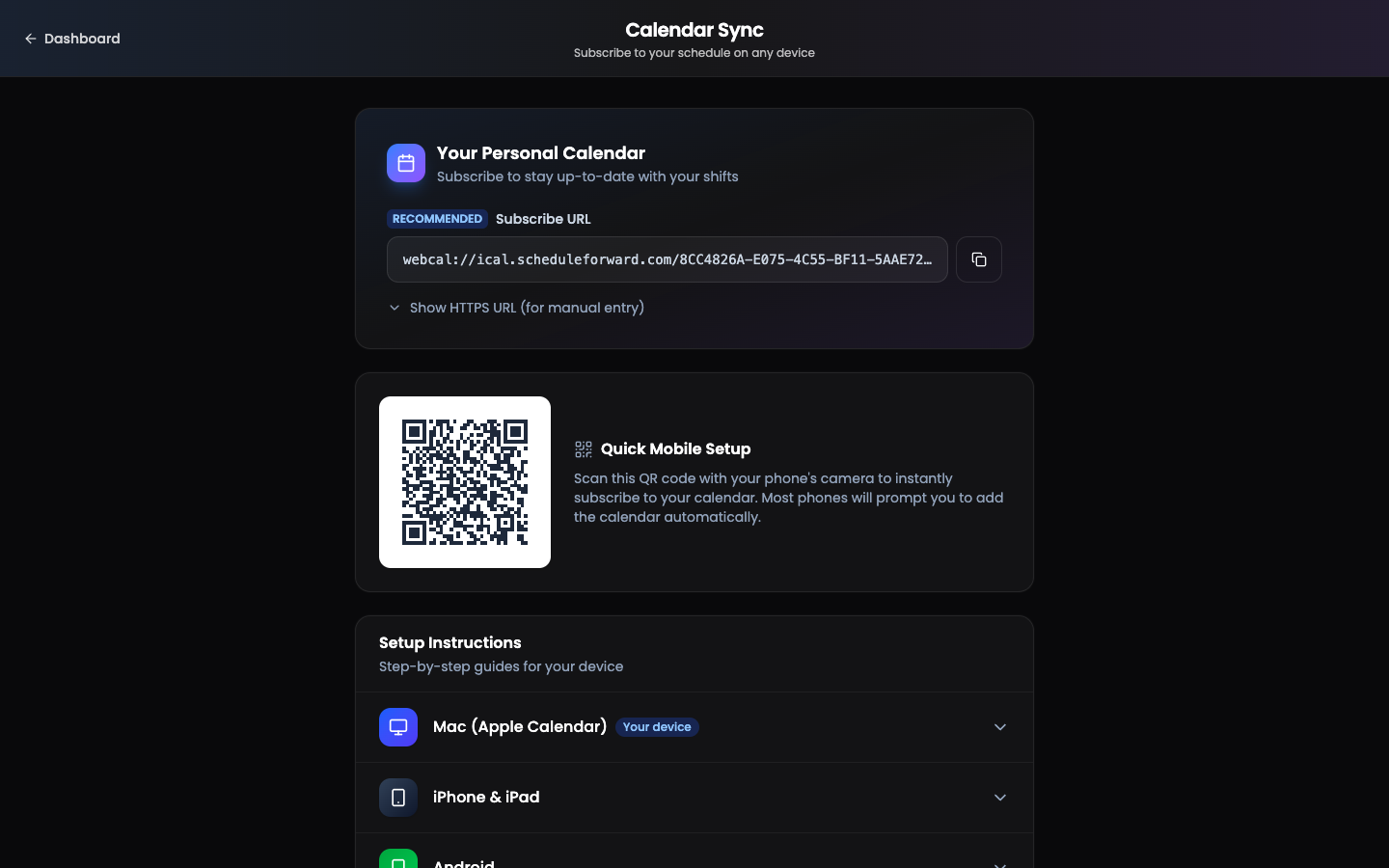
Open the Calendar Sync page
Tap your avatar (top right) → Calendar Sync. ScheduleForward detects you’re on iOS and pre-expands the right instructions.
Tap the QR code or button
On your phone, tap the “Add to iPhone” button. iOS will ask if you want to add a subscribed calendar — say yes.
On a computer, point your phone’s camera at the QR code on screen instead.
Confirm in iOS
iOS pops up a confirmation showing the calendar name. Tap Subscribe, then Add. Your shifts will appear in the Calendar app within a minute.
On Android
Copy your sync link
On the Calendar Sync page, tap Copy link. This copies your unique calendar URL.
Open Google Calendar (web)
Android’s native calendar can’t subscribe to URLs directly — but Google Calendar can, and it syncs to your phone. On a computer (or in your phone browser as “desktop site”), go to calendar.google.com.
Add by URL
In the left sidebar, tap + next to “Other calendars,” pick From URL, paste your link, and add it. Within minutes it shows up on your phone’s Google Calendar.
On Mac or Windows
macOS Calendar
Click Add to Mac — macOS opens Calendar with the subscription sheet pre-filled. Choose how often to refresh and hit OK.
Windows / Outlook
Copy your link. In Outlook, choose Add Calendar → From Internet and paste. Outlook polls the link and updates automatically.
Google Calendar (web)
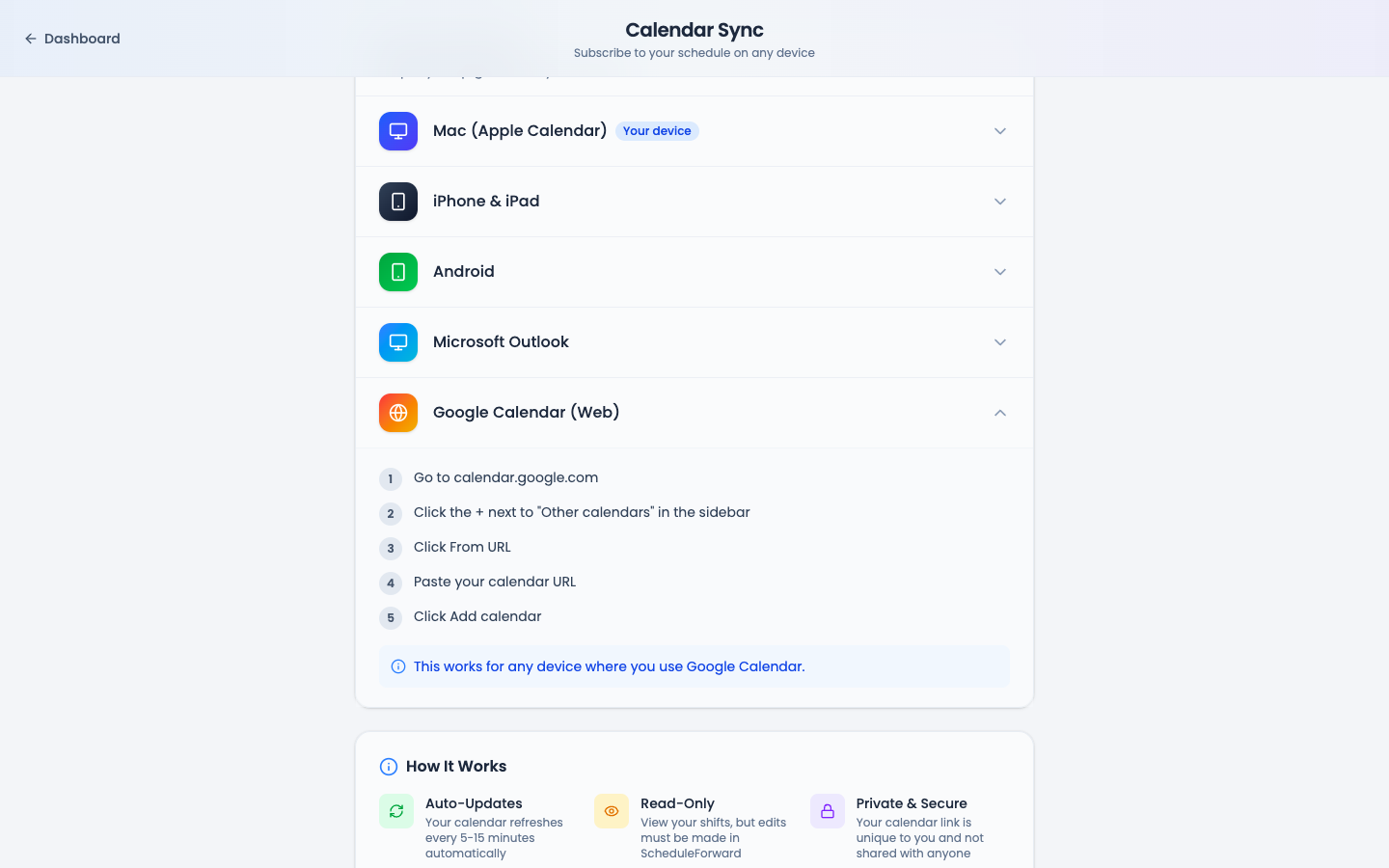
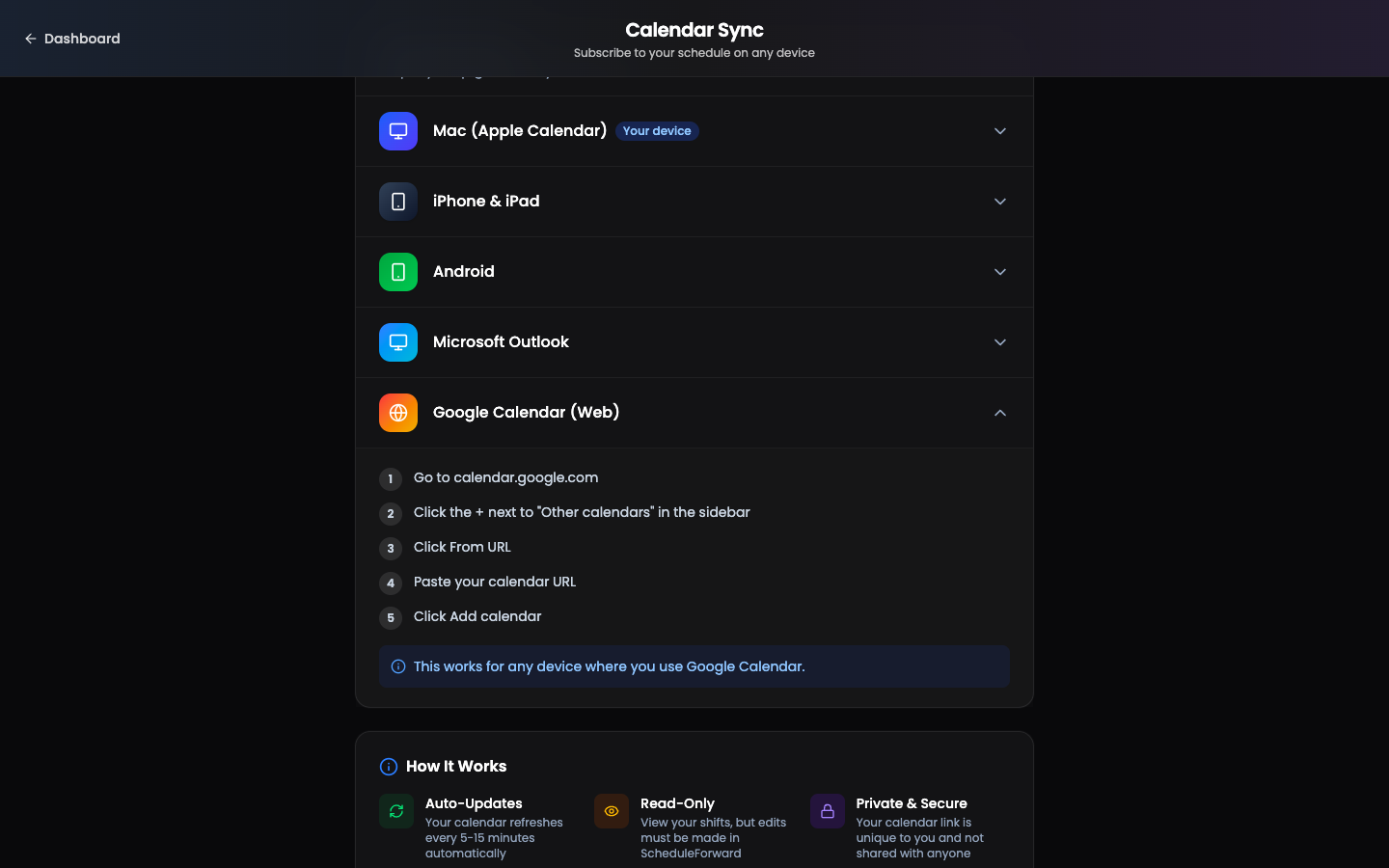
Open Google Calendar
Go to calendar.google.com on any device.
Add a URL calendar
In the left sidebar, find Other calendars → + → From URL. Paste your ScheduleForward link, then Add.
Resetting your sync link
Your sync link is private. If you ever shared it by accident — or just want a fresh one — open the Calendar Sync page and tap Reset link. Your old link instantly stops working, and you’ll get a new one to subscribe to.
Common questions
How often does it update?
Most calendar apps refresh every few hours. If you make a change in ScheduleForward and don’t see it right away, pull-to-refresh in your calendar app, or wait 15 minutes.
Will personal events sync too?
Yes — your shifts, trades, and personal events all flow through to your phone calendar. Time off requests appear too, once approved.
Is this private? Can other people see it?
Your sync link is unique to you. Anyone with the link can see your shifts, so don’t post it publicly. If you ever shared it by accident, reset the link from the same page — your old link instantly stops working.
I scanned the QR code and nothing happened.
Some scanners don’t open webcal:// links. Open the camera app first, then point it at the QR code — your phone will offer to add the calendar. On desktop, copy the link and paste it into your calendar app’s “Subscribe to calendar” option.
Why can’t I edit shifts from my phone calendar?
It’s a read-only feed by design. To edit anything (trades, time off, picks), open ScheduleForward.