
Dashboard
The Dashboard is your home base. It shows what’s happening now, what’s coming up this week, what needs your attention, and quick links to everything else.
A quick tour
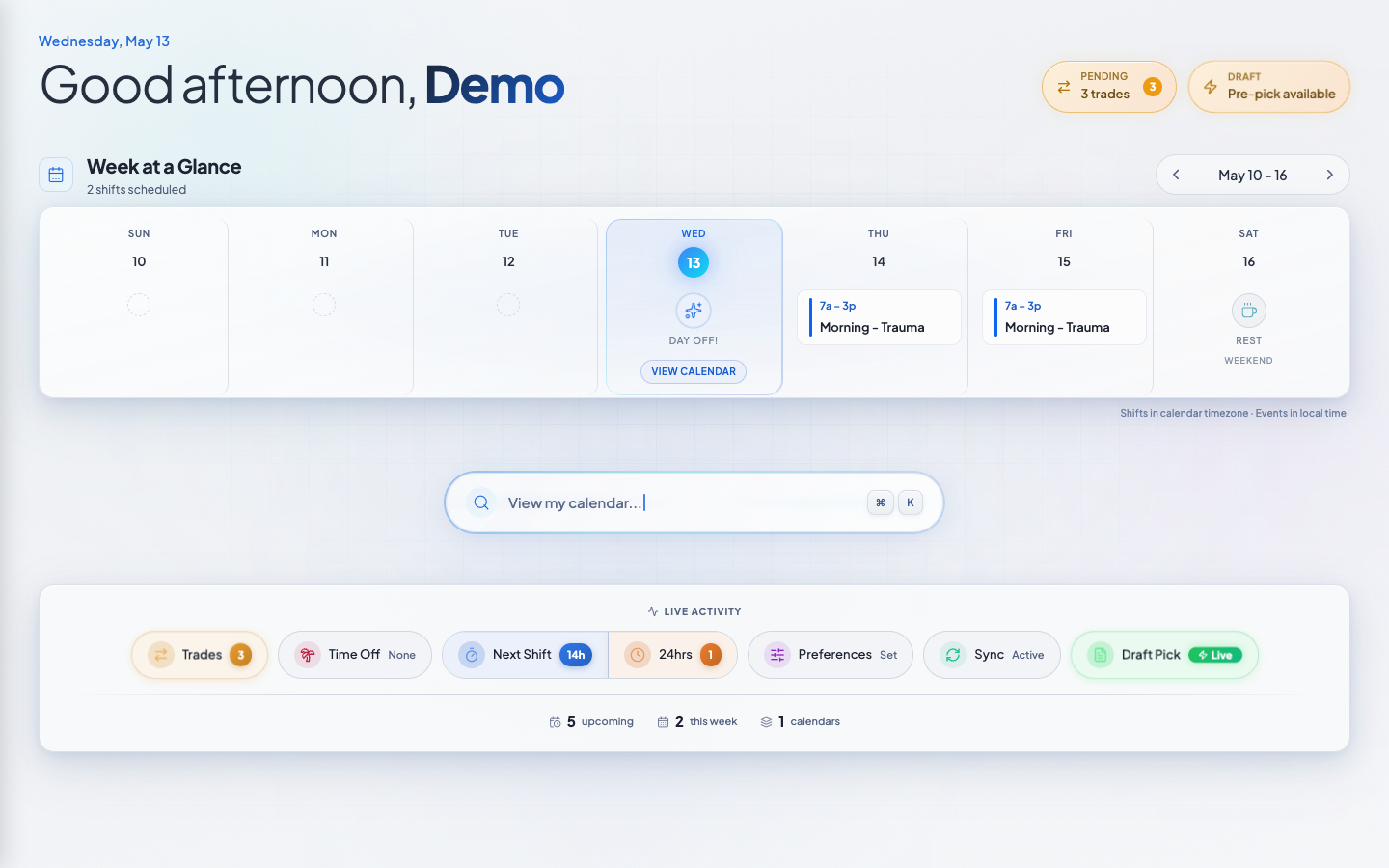
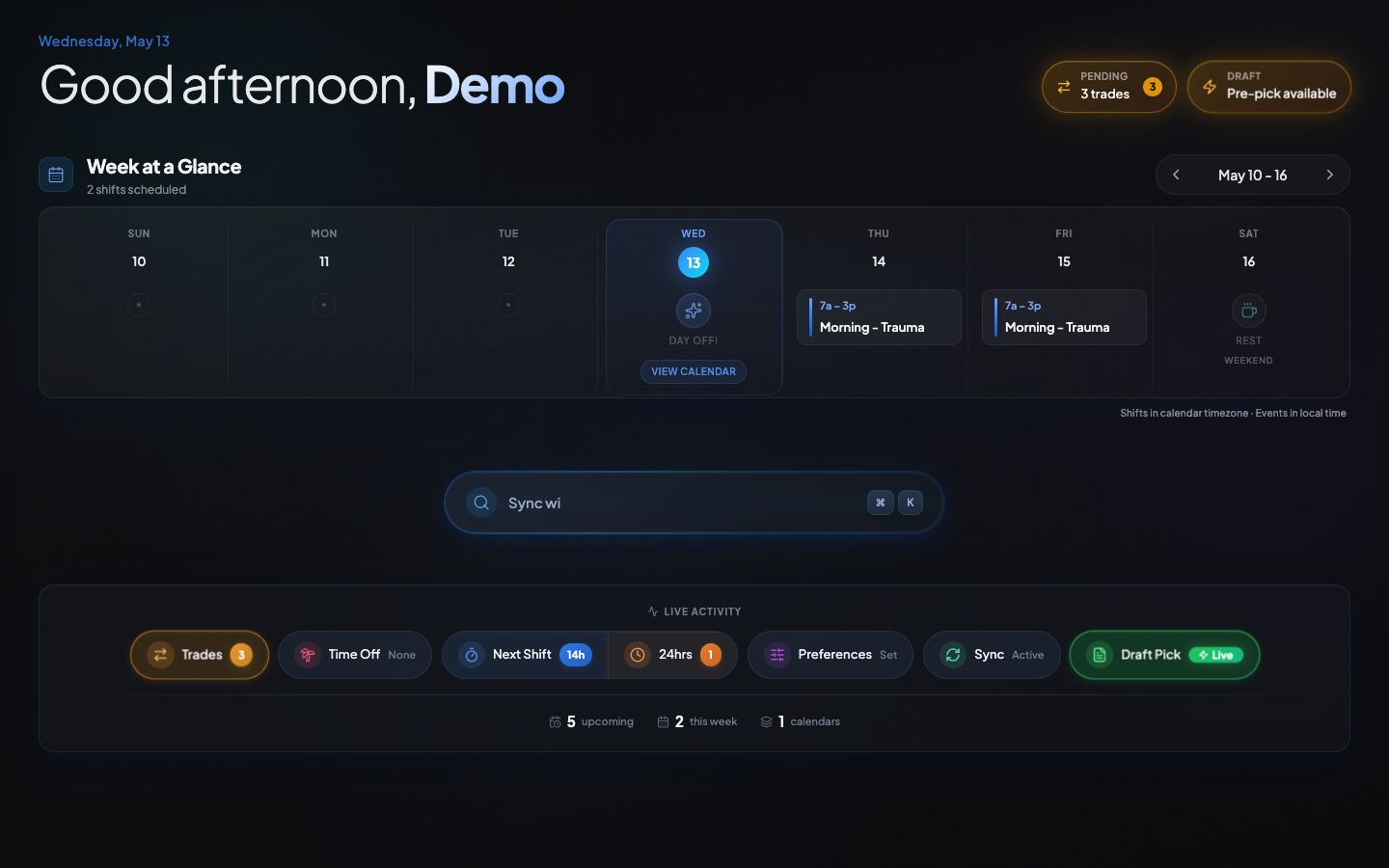
Every time you sign in, this is what you see first. Top to bottom, it’s designed so the most important thing always shows up at the top.
The greeting bar
Friendly hello
A quick “Good morning, Alex” to start your day. Above that, big callouts appear when something needs your attention.
The big-deal callouts
When it’s your turn in a draft, you’ll see a “You’re up!” banner here that jumps you straight in. Pending trades waiting on you also surface up top.
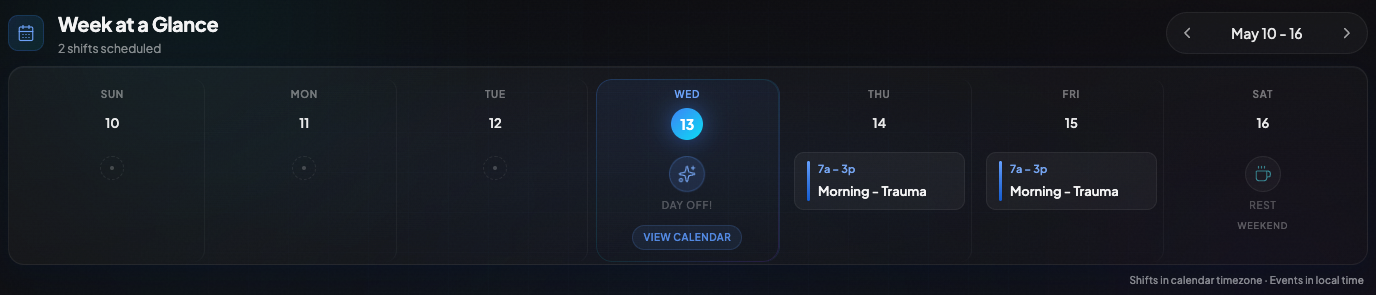
Week at a glance
Seven days, one strip
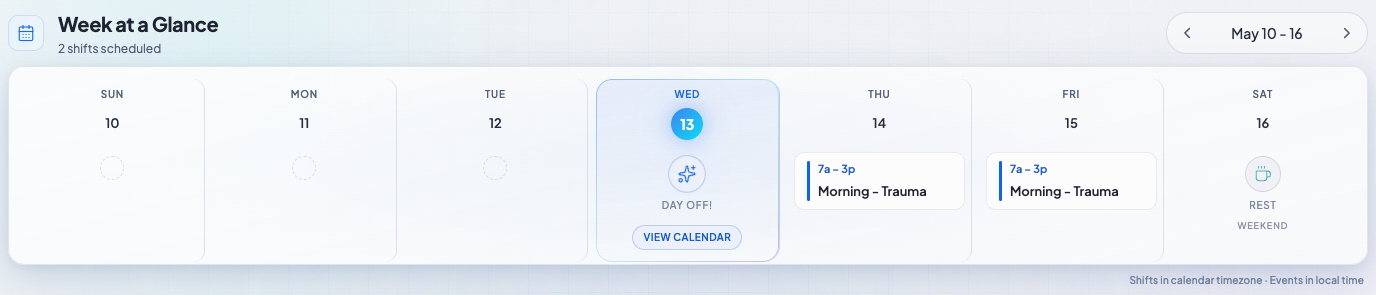
A horizontal strip of the next seven days. Each day shows your shifts and personal events with the location’s color. Today is highlighted.
Look further out
Use the arrows to peek at next week (or the week after) without losing context. The strip respects your sub-group’s time zone.
The Command Center
Smack in the middle of the dashboard is a big search-style button. Tap it to open the Command Palette — a fast way to jump to any page or do common actions.
Open from anywhere
Tap the button or press ⌘K (Mac) / Ctrl+K (Windows) from anywhere in the app.
Type to filter
Type “draft”, “trade”, “preferences” — whatever you want. Hit Enter on the match. It’s the fastest way around.
Live status & shortcuts
Jump straight into any draft you’re in.
See unanswered trade requests at a glance.
Open Command Palette anywhere.
Live countdown when your next shift starts soon.
Common questions
Can I make a different page my home page?
Yes. Open your Profile and pick a landing page — your main calendar, a sub-group calendar, or your dashboard. ScheduleForward will take you there when you sign in.
What if I have no shifts yet?
The dashboard shows you that. Once your admin starts a draft or assigns shifts, the dashboard fills in. In the meantime, set up Preferences and Calendar Sync so you’re ready.
The “next shift” countdown looks wrong.
It’s based on the time zone of the shift’s sub-group. If you’re traveling, what you see on the dashboard is the time at the shift’s location.