

Sub-Group Calendar
The Sub-Group Calendar shows the whole team’s schedule in one place. Great for coordinating trades, planning around coverage, or just being a good teammate.
A team-wide view
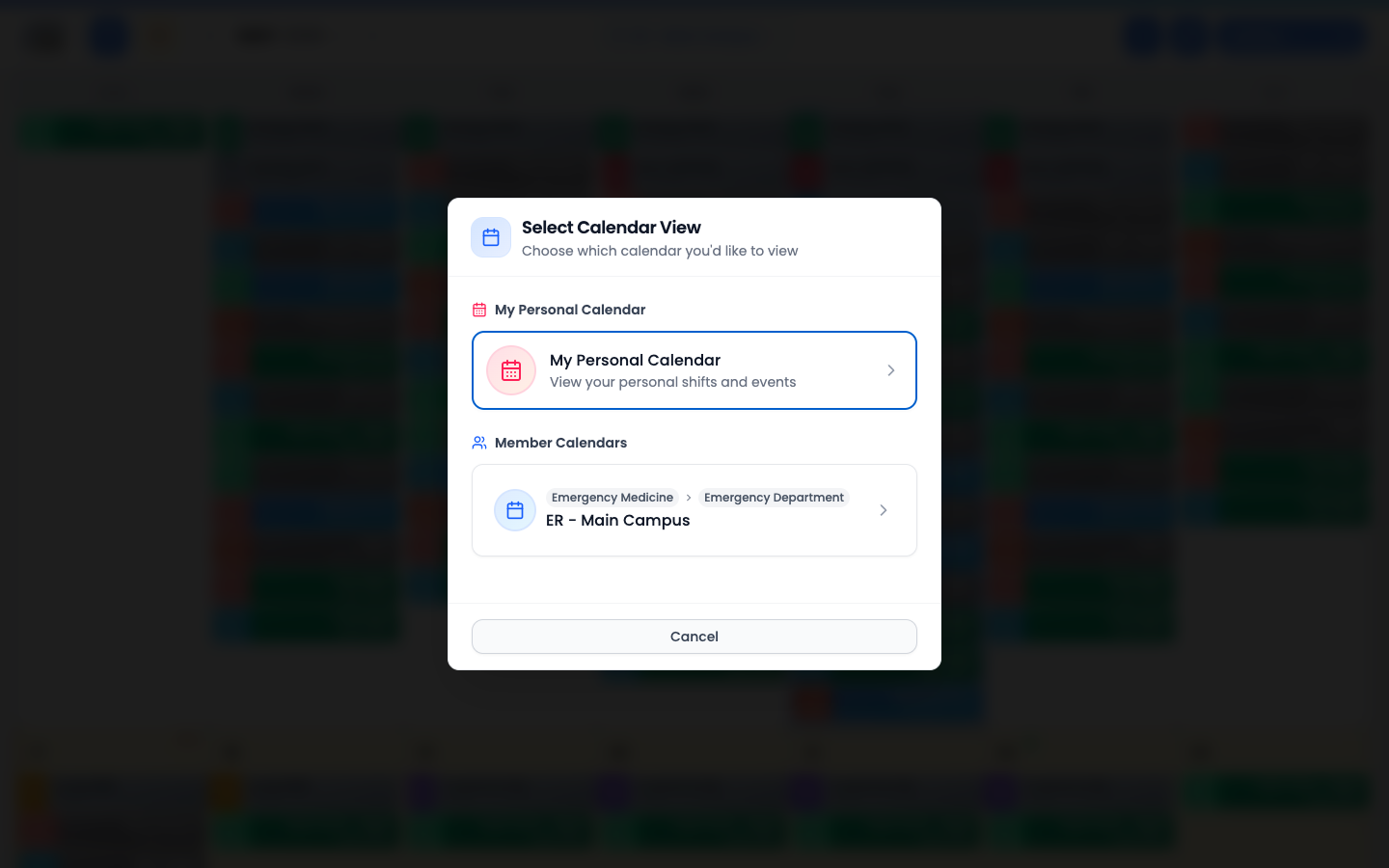
Use the calendar selector in the header (the “All Calendars” button) to pick a sub-group you’re a member of. You’ll see every shift in that sub-group — yours and everyone else’s — color-coded by location.
Things you can do here
Filter the view
Narrow by member, location, or shift tag so the calendar shows just what you need.
Tap a shift to act on it
Tap any shift, yours or a coworker’s, to see the details. From here you can propose a swap, give your shift away to a teammate, or pick up a shift that’s on the Trade Board. Available actions depend on whether the shift is yours and whether it’s listed on the board.
Spot Trade Board shifts
Shifts on the Trade Board glow gold — easy to spot at a glance. Tap one and choose Pick Up to claim it. There’s a toggle in the toolbar if you want to hide the highlight.
Open the legend
Same legend drawer as My Calendar — locations, tags, and shift colors all in one place.
Add your personal event
Tap the + button in the toolbar (left of the legend key) to create a personal event for yourself, without leaving this view.
Switch how shifts are grouped
The same schedule, three ways to read it. Open the Actions menu at the top of the calendar and use the Display section to switch views. Your choice is remembered on this device.
Classic
The familiar month grid — each day’s shifts stacked in rows. This is the default.
Timeline
Groups each day by time of day, so morning, day, and night shifts line up in their own lanes. Great for seeing how a day is covered from open to close.
Buckets
Groups each day by location, with shifts collected under the place they happen. Handy when you care about who’s where.
Common questions
Can I see other coworkers’ shifts?
Yes, the sub-group calendar shows everyone’s shifts in that sub-group so you can coordinate trades, see coverage gaps, and find someone to swap with.
Can I see their personal events?
No — personal events stay private to the person who created them. You only see your own.
How is this different from My Calendar?
My Calendar is yours only. The Sub-Group Calendar shows the whole team’s shifts in one view.