
Onboarding
Onboarding is the path from typing your name into the sign-up page to landing on your dashboard with everything ready to go. This guide walks you through the steps in order so nothing surprises you.
Creating your account
Head to the sign-up page
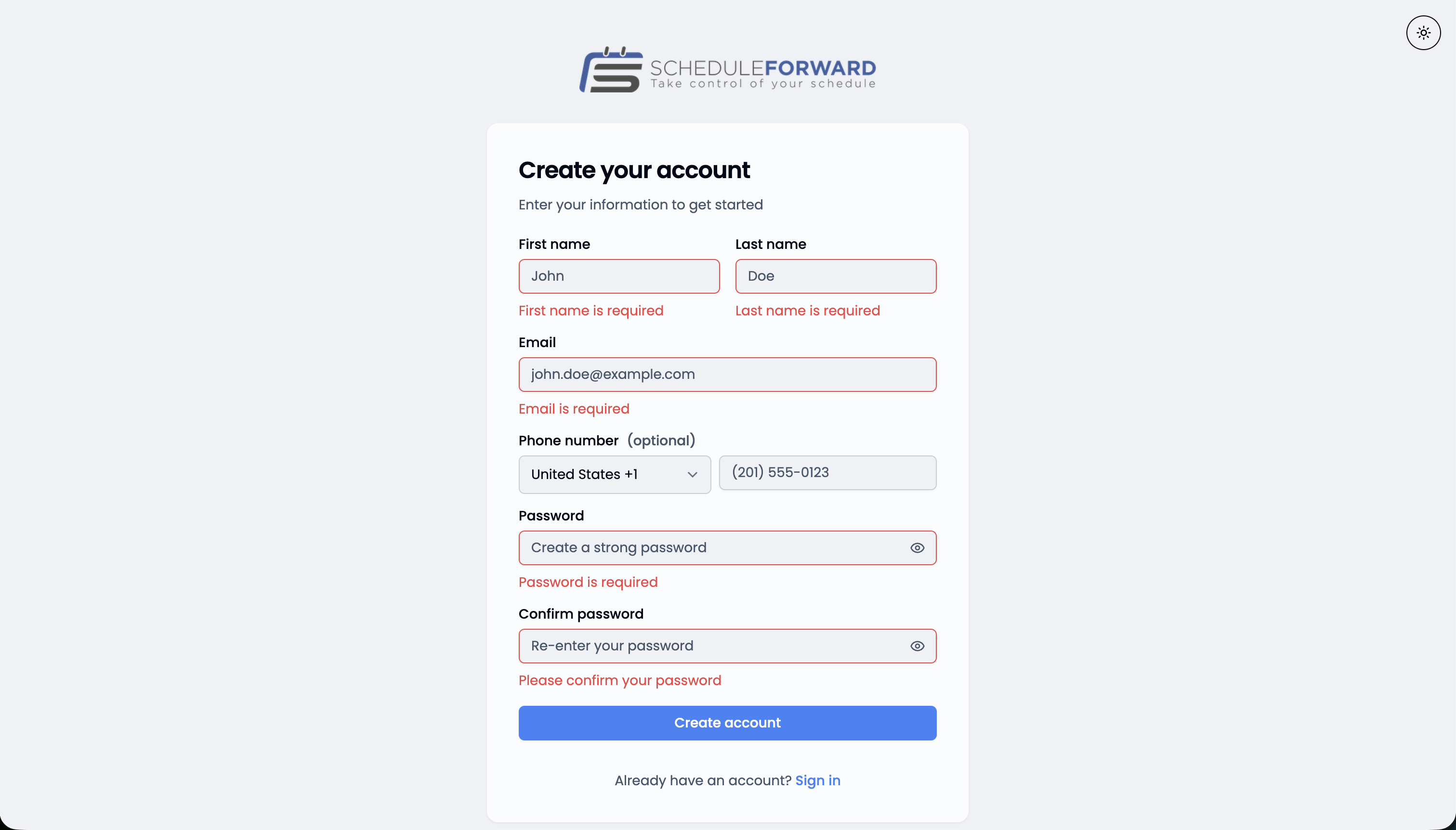
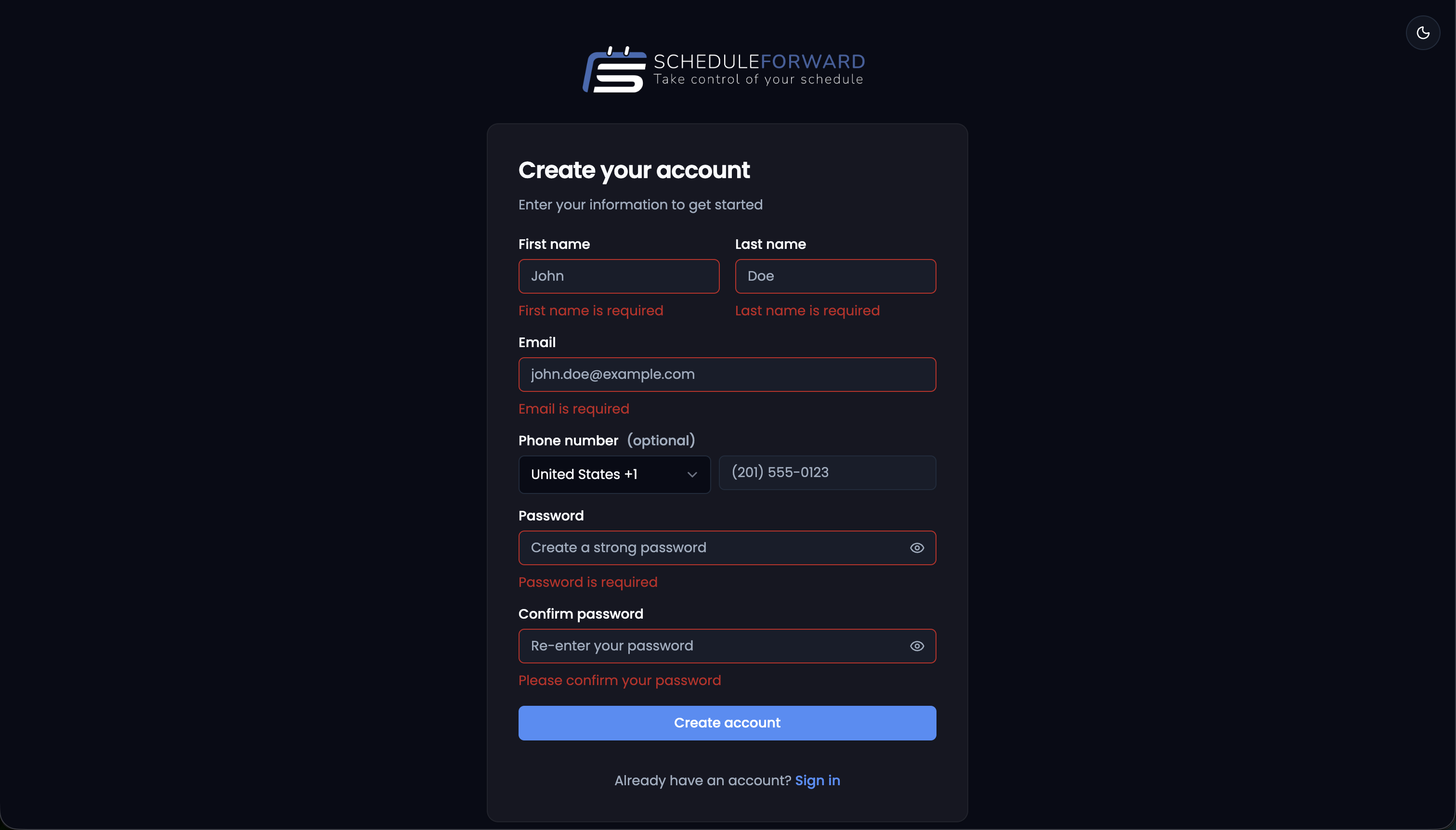
Open the sign-up page from the sign-in screen, or follow the invitation link if your admin sent one. You’ll enter your first and last name, email address, an optional phone number, and a password.
Pick the email you’ll actually use
Use the email where you want notifications to land. You can add more email addresses later and switch which one is primary, but starting with the right one makes the first few days friction-free.
Verifying your email
Watch your inbox
Right after sign-up we send a verification email to the address you used. It usually arrives within a minute or two. If you don’t see it, check spam or promotions — automated mail sometimes lands there on the first send.
Click the link (or paste the code)
The “Verify my email” button opens the verification page in your browser. If the link doesn’t work — some mail apps strip them — paste the one-time code from the email into the form on that page instead. Either way, once it’s confirmed your account is fully active.
Signing in for the first time
Enter your email and password
Use the email you signed up with. ScheduleForward remembers your session on each device, so you typically only sign in once per browser.
Land on your dashboard
By default, sign-in drops you on the Dashboard — your home base. If your admin hasn’t added you to a sub-group yet, the dashboard will be quiet; that’s normal. Once a sub-group is assigned, shifts, drafts, and trades start showing up here.
Forgot or resetting your password
Click “Forgot password”
From the sign-in page, the link sits right below the password field. Enter the email on your account and we’ll send a reset link.
Pick a new password
The reset email leads to a short form — type your new password twice and submit. Once it’s saved you’ll land back on the sign-in page with a success message; sign in with your new password to finish.
Filling out your profile
Add or confirm your phone
If you skipped the phone field at sign-up, add it from Profile so we can text you about time-sensitive things (your turn in a draft, an incoming trade, a time-off response).
Pick your landing page
Decide where you want to land after sign-in. The Dashboard is the default, but if you live in a specific calendar all day, set that as your landing page instead.
Where to go from here
Get oriented on the Dashboard
The Dashboard summarizes what’s next: upcoming shifts, active drafts, pending trades, and anything that needs your attention. Read the Dashboard guide for the full tour.
Set your shift preferences
Tell ScheduleForward where and when you love to work. Both Shift Preferences (locations and tags) and Calendar Preferences (days, times, streaks) help drafts and auto-pick land on shifts that fit your life.
Browse the Help Center
Each topic in the left sidebar covers one part of the app. The Account section has guides for Profile, Email Addresses, and Merging Accounts — handy as you settle in.
Common questions
I never got the verification email — what do I do?
Check your spam or promotions folder first — verification emails sometimes land there. If it’s still not showing up, head back to sign-in and click “Resend verification email.” If you’ve waited a few minutes and nothing arrives, your address may have a typo; you can sign up again with the corrected email.
My verification link expired. What now?
Verification links expire after a few hours for security. Go to sign-in, enter your email and password, and ScheduleForward will offer to resend a fresh link.
Why does the app keep asking me to verify my email?
A banner reminds you to verify until the link is clicked. Once you complete verification, the banner disappears and full access opens up. If you’ve already clicked the link but still see the banner, try signing out and back in — sometimes the session needs a refresh.
I signed up but I don’t see any shifts or sub-groups yet.
New accounts don’t come pre-loaded with shifts. Your admin needs to add you to a sub-group before shifts will appear. If you expected to be added already, the fastest move is to message your admin directly — they can confirm your sub-group membership and check that the email you used matches what they have on file.
Can I change my email or phone number after I sign up?
Yes. Both live in your Profile — you can update your phone anytime, and email changes happen via the Email Addresses page (add a new email, verify it, and switch it to primary). See the Profile and Email Addresses guides for the details.