
My Calendar
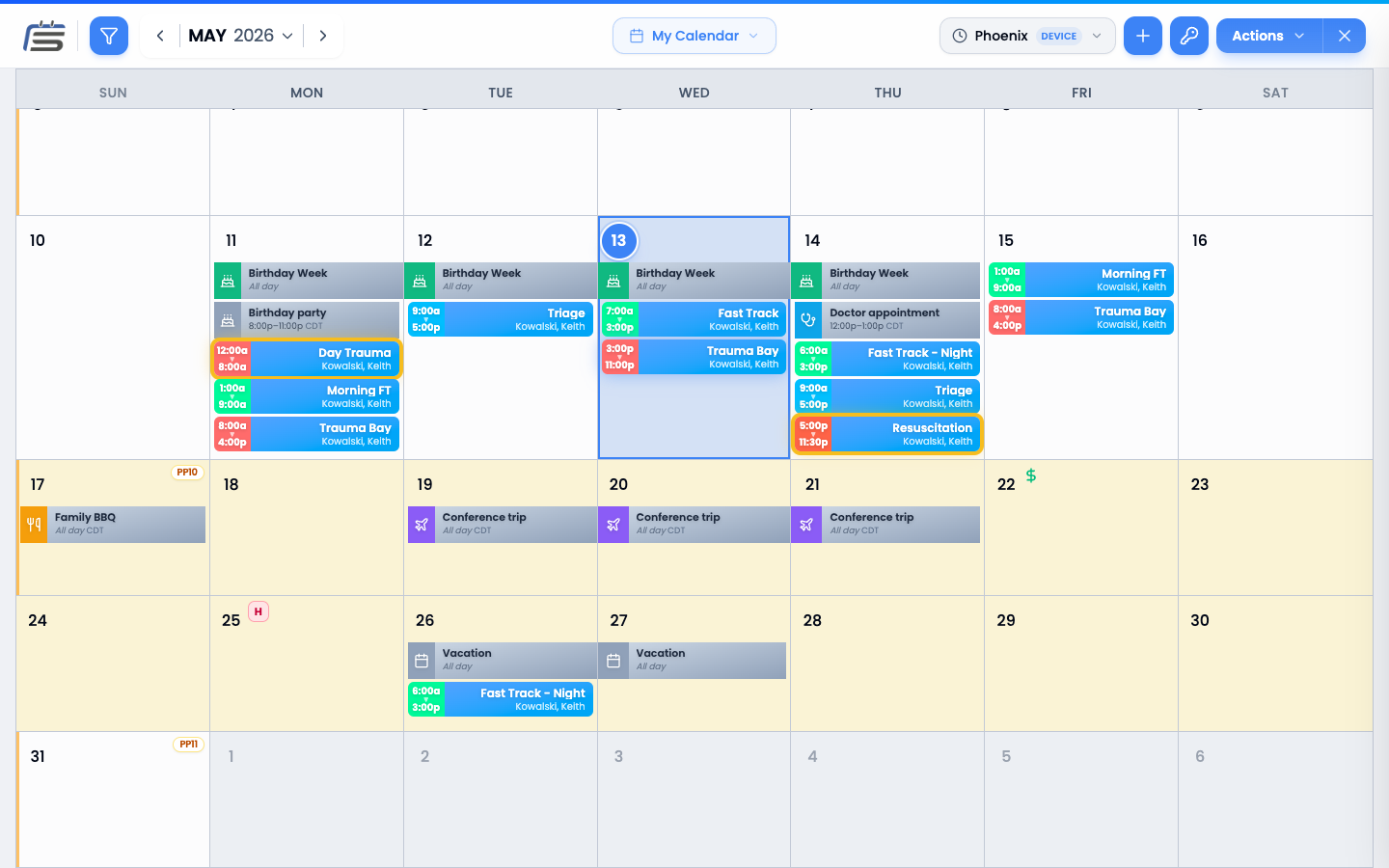
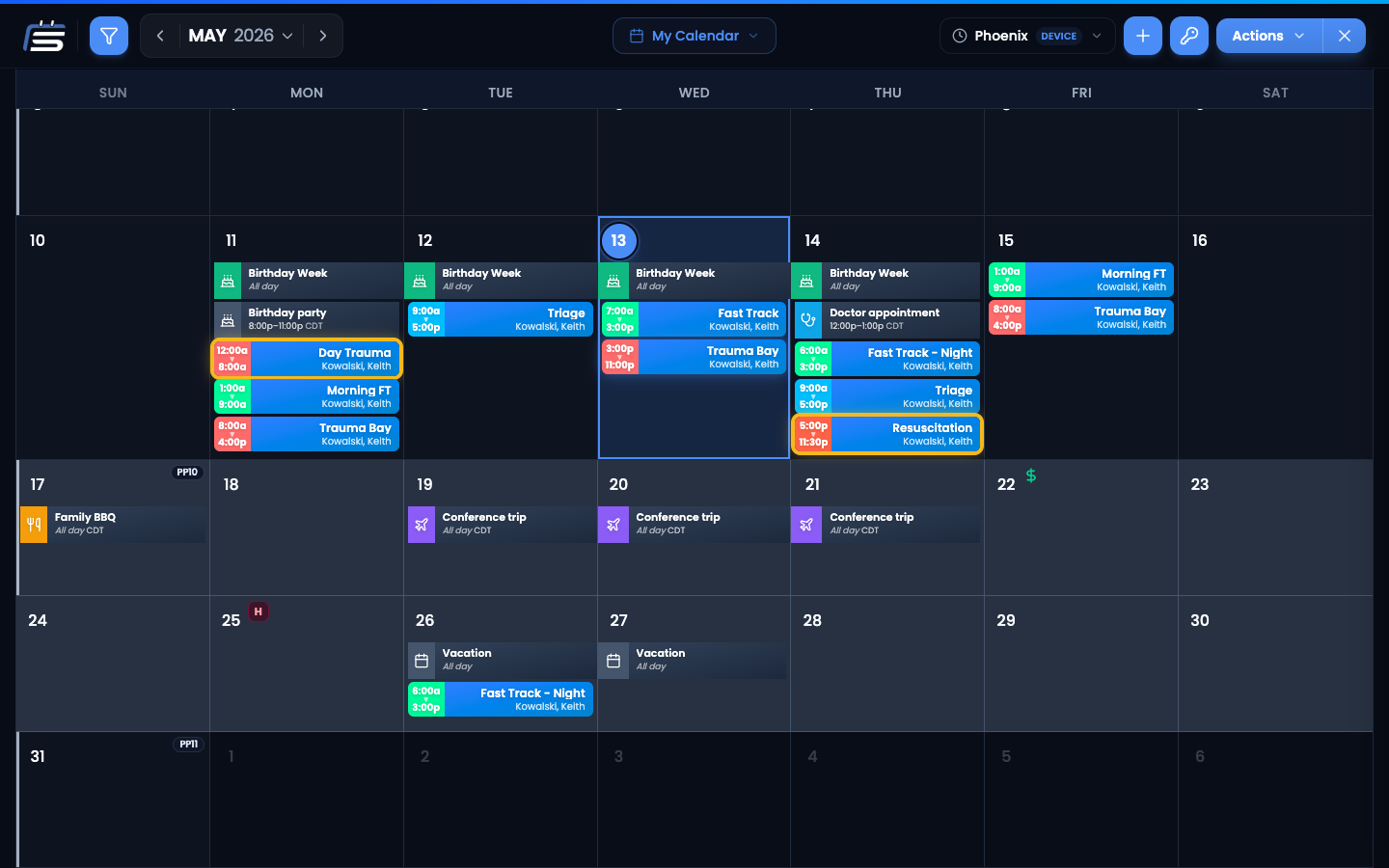
My Calendar is the monthly canvas for your work. Every shift and personal event that’s yours shows up here, color-coded by location, filterable, and clickable for details.
What you’ll see
Shifts
Color-coded by location. Tap any shift to see the details panel, propose a trade, or share to the Trade Board.
Personal events
Anything you’ve added shows up with its icon and highlight color. They live alongside your shifts so you see life and work together.
Filters
The filter sheet narrows the calendar down to just what you care about. Open it from the toolbar at the top.
Locations
Show only shifts at certain locations. Helpful if you cover multiple sites and want to focus on one.
Shift tags
Filter by shift tag — useful for separating clinical from non-clinical, primary from float, that kind of thing.
Show / hide
Two visibility toggles. Hide personal events when you only want to see work. Hide open (unassigned) shifts when you only want to see what’s already on someone’s calendar.
View options
Three small controls in the calendar toolbar shape how the calendar looks and feels. They stick across sessions, so pick once and forget.
Classic vs Compact
Classic shows shift names and times prominently. Compact tightens everything up to fit more on screen. Toggle from the header.
Pay-period markers
Toggle whether pay-period boundaries (NFC, GSA, or DFAS — depending on your sub-group) show as subtle vertical markers across the month. Helpful for tracking which shifts fall on which payroll cycle.
Trade Board highlight
Shifts on the Trade Board light up gold automatically on My Calendar — yours and any teammate’s in your sub-group. No toggle here; it’s always on so you never miss a pickup. (The Sub-Group Calendar has a toggle to turn it off.)
The legend drawer
Tap the legend icon on the right to see what every color and tag means.
Adding personal events on the fly
Tap the + on a day
Hover or tap a day header to reveal the + button. It opens the same Personal Event dialog you’d find under My Schedule, pre-filled with that date.
Common questions
Why are some days colored differently?
Today gets a soft highlight. Days you’ve selected get a stronger one. Days from the previous or next month show muted and let you peek at them on hover.
Can I drag shifts to reschedule?
No — shifts are owned by the schedule. To change a shift, propose a trade or post it to the Trade Board.
I see shifts in two different colors. What gives?
Shifts inherit the color of their location. Two locations = two colors. Open the Legend to see which is which.