

Merge Accounts
If you ended up with two ScheduleForward accounts (oops — happens when a new email gets you re-invited), Merge Accounts safely combines them into one. History, preferences, and memberships all move over.
When does this come up?
Usually when:
- You got invited with one email, then your team re-invited you with a different one.
- You changed your work email and accidentally signed up fresh instead of adding the new email to your existing account.
- Two organizations both invited you and you accepted both before realizing they could share one account.
How the merge works
Sign in to the account you want to keep
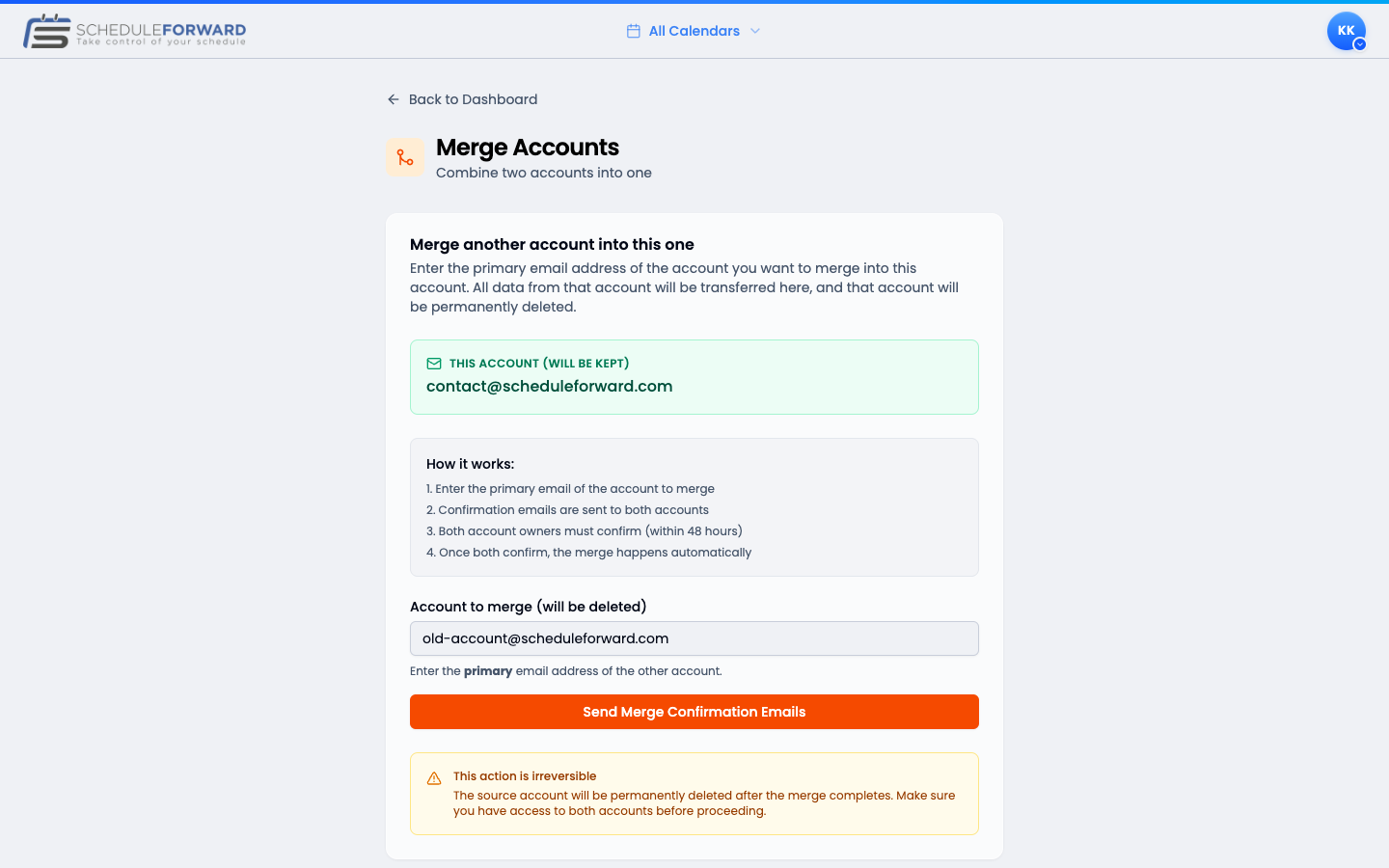
This is the surviving account — its ID, history, and settings carry forward. Everything from the other one gets folded in.
Enter the other account’s email
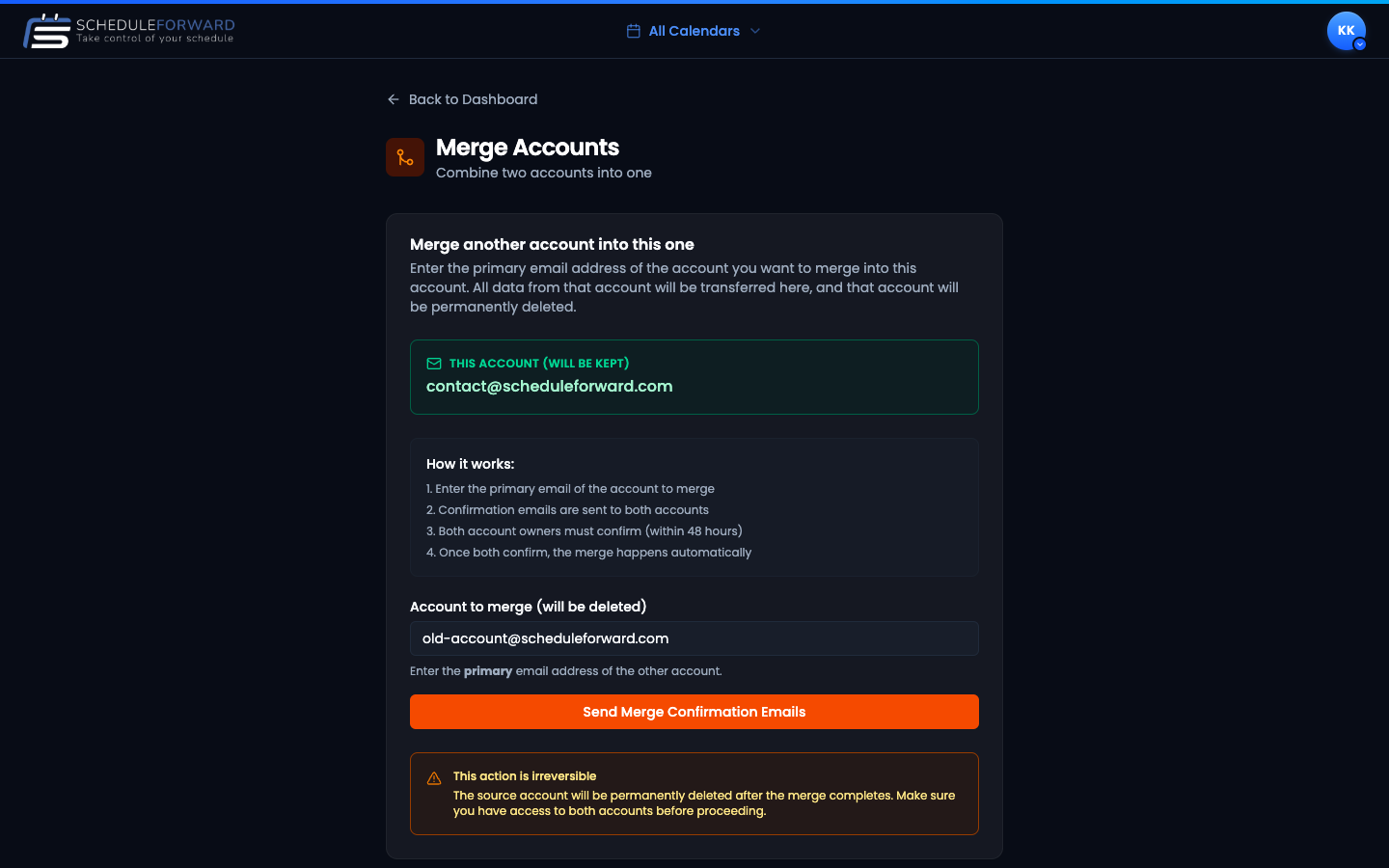
On the Merge Accounts page, type the email tied to the other account. Tap Send merge request.
Confirm both emails
Both accounts receive a confirmation email. Click each link to confirm. We need both yeses before anything moves.
Merge runs
Once both sides confirm, ScheduleForward folds everything together. The old account closes — its email becomes an alias on the surviving one.
While the merge is pending
Between sending the request and the merge actually running, a few things happen automatically — and you still have an escape hatch if you change your mind.
48-hour confirmation window
Pending requests expire after 48 hours. If both sides haven’t confirmed by then, the request is automatically marked expired and nothing moves. You can start a new one anytime.
Conflict & transfer preview
Before either side confirms, ScheduleForward shows a preview of what’s about to happen. If both accounts share sub-group memberships, admin access, or super-admin status, the source’s overlapping rights will be dropped (since they’re already on the surviving account). The preview also shows how many emails, memberships, admin grants, and personal events will transfer — so there are no surprises.
Cancel before confirming
Either account can hit Cancel Merge Request on the Merge Accounts page to call the whole thing off. Cancellation is instant; the request can’t be resumed — start fresh if you want to try again.
After the merge
- You sign in with the surviving account’s email (or any verified alias).
- All your shifts, trades, time-off, and history are visible in one place.
- Memberships from both accounts combine — you’re still in every sub-group you were before.
- The old account email becomes a verified alias on your account. You can sign in with it too.
Common questions
What gets moved when I merge?
All your shifts, trades, personal events, preferences, time-off requests, and history. Everything from the old account moves over to the one you’re keeping.
Is this reversible?
No. Once a merge is confirmed by both sides, the old account is closed and folded into the surviving one. Be sure before you confirm.
Do I need access to both accounts?
Yes — both confirmation emails must be approved (one for the account you’re keeping, one for the account being merged away). That’s how we know it’s really you on both ends.
My second account had a different sub-group. Will I lose those memberships?
Nope — memberships from both accounts combine on the surviving one. You stay in every sub-group you were a member of.