

Members & Roles
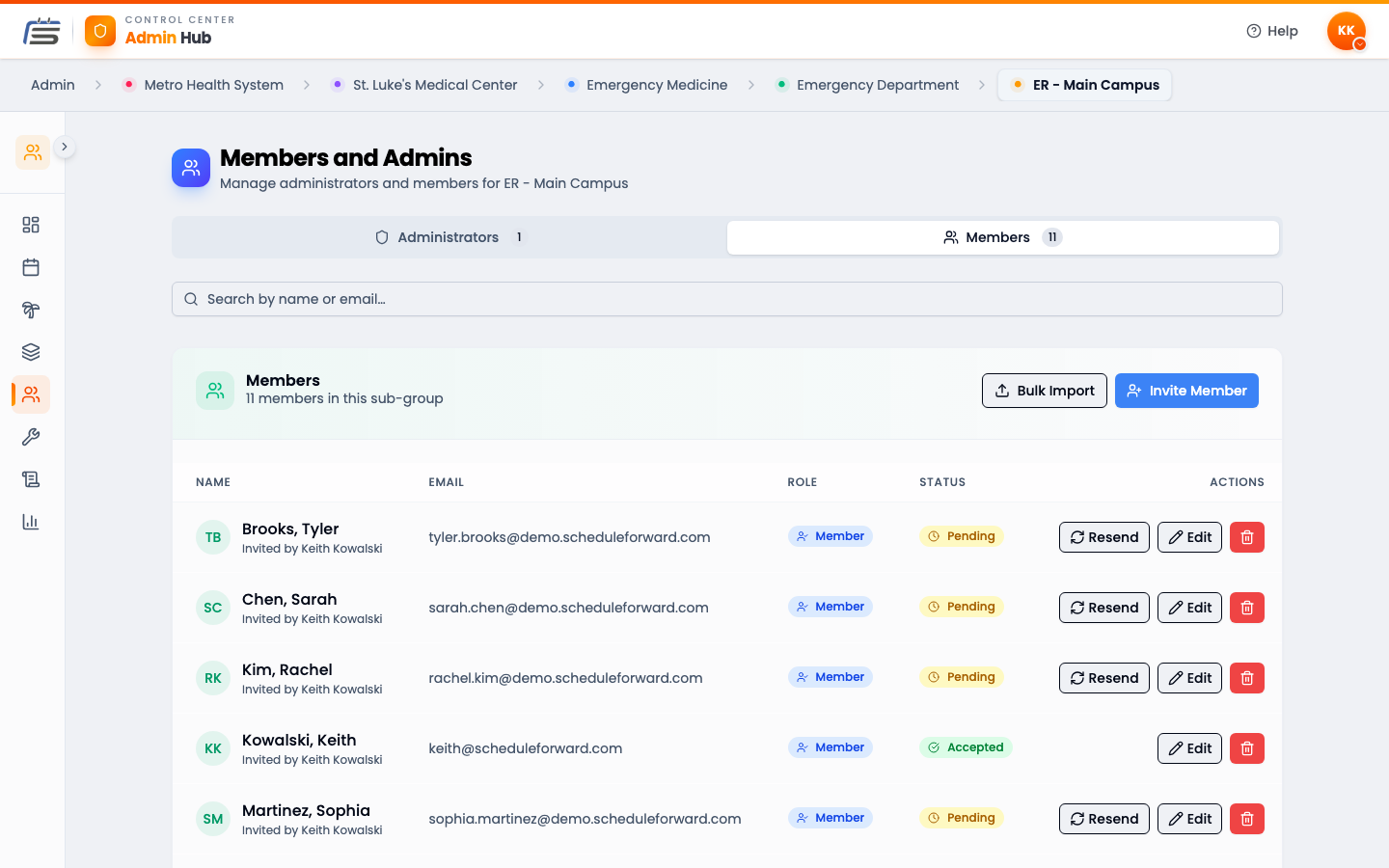
Members are the people on your team. Roles decide what each person is allowed to do. This guide covers adding people and choosing the right role for each.
Adding people
Invite someone by email
Adding a lot at once?
The three roles
Everyone on a team is one of these. Pick the smallest one that lets them do their job:
- Member — on the schedule. They pick and work shifts.
- Admin — runs the team. Builds schedules, manages people, changes settings.
- Viewer — can look at the schedule but can’t change anything.
Active vs inactive
Active means schedulable
Archiving keeps the history
Members & Roles FAQ
What’s the difference between a member, an admin, and a viewer?
A member is on the schedule — they pick and work shifts. An admin can run the team — build schedules, manage people, change settings. A viewer can look but not touch. Pick the smallest role that lets someone do their job.
Someone left the team. Do I delete them?
No — archive them instead (that’s the button you’ll see). Archiving makes them inactive: it keeps their history intact and stops them from being scheduled, without erasing the record of shifts they worked.
Does making someone inactive change my bill?
Billing counts active scheduled members. Marking someone inactive takes them out of that count going forward. See the Billing guide for the details.
Can one person be on more than one team?
Yes. The same person can belong to several Sub-Groups, each with its own role.