

AI Schedule Generation
Set your coverage rules and let ScheduleForward build a balanced schedule for you. You stay in charge — it does the heavy lifting, you review and publish.
The idea
Instead of placing every shift yourself, you tell the app what “covered” looks like — how many people you need, where, and when — and it fills the schedule in for you. It tries to spread the work fairly and respect people’s preferences. Then you check it over and publish.
Set the rules
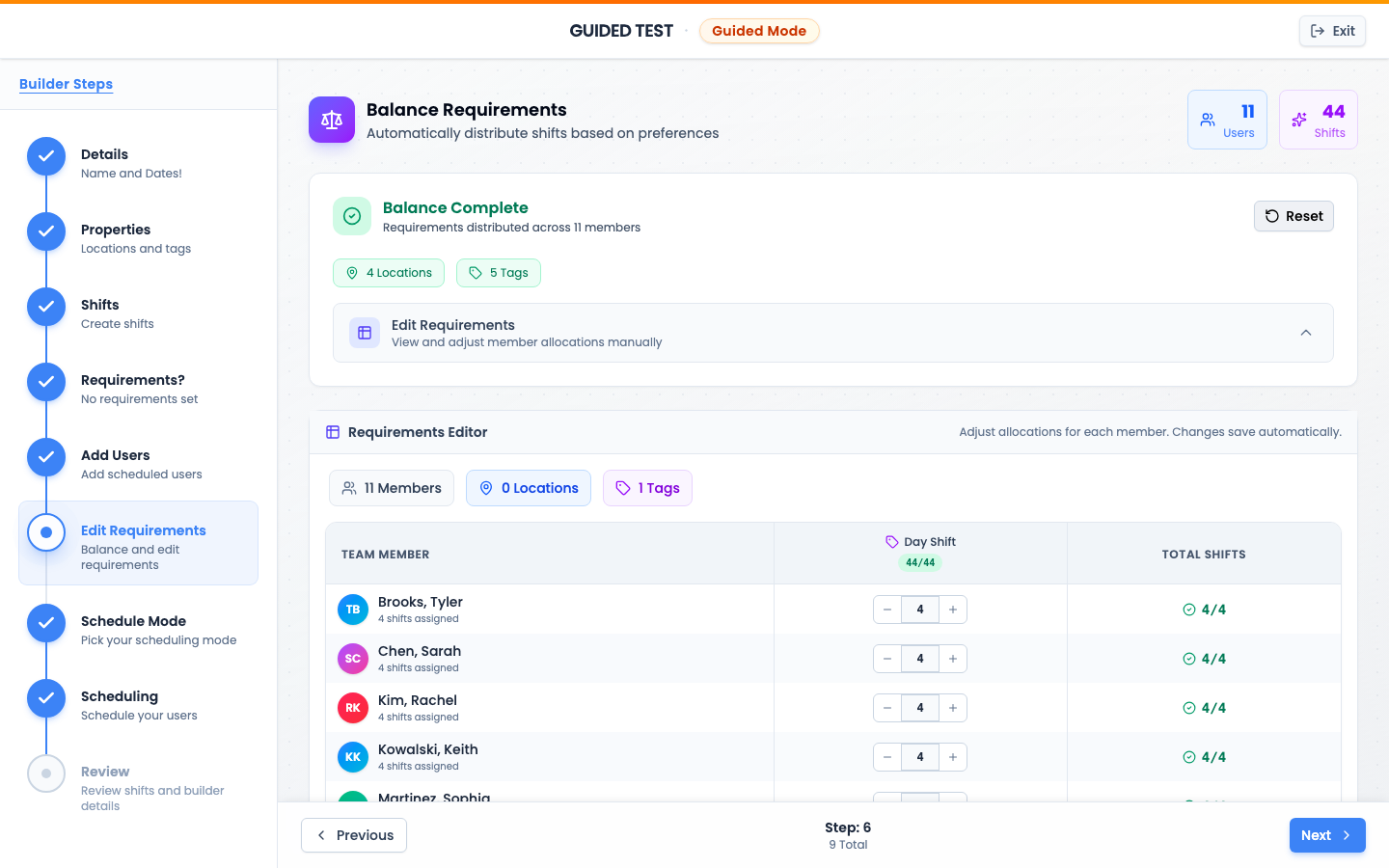
Say what coverage you need
Lean on preferences
Generate and review
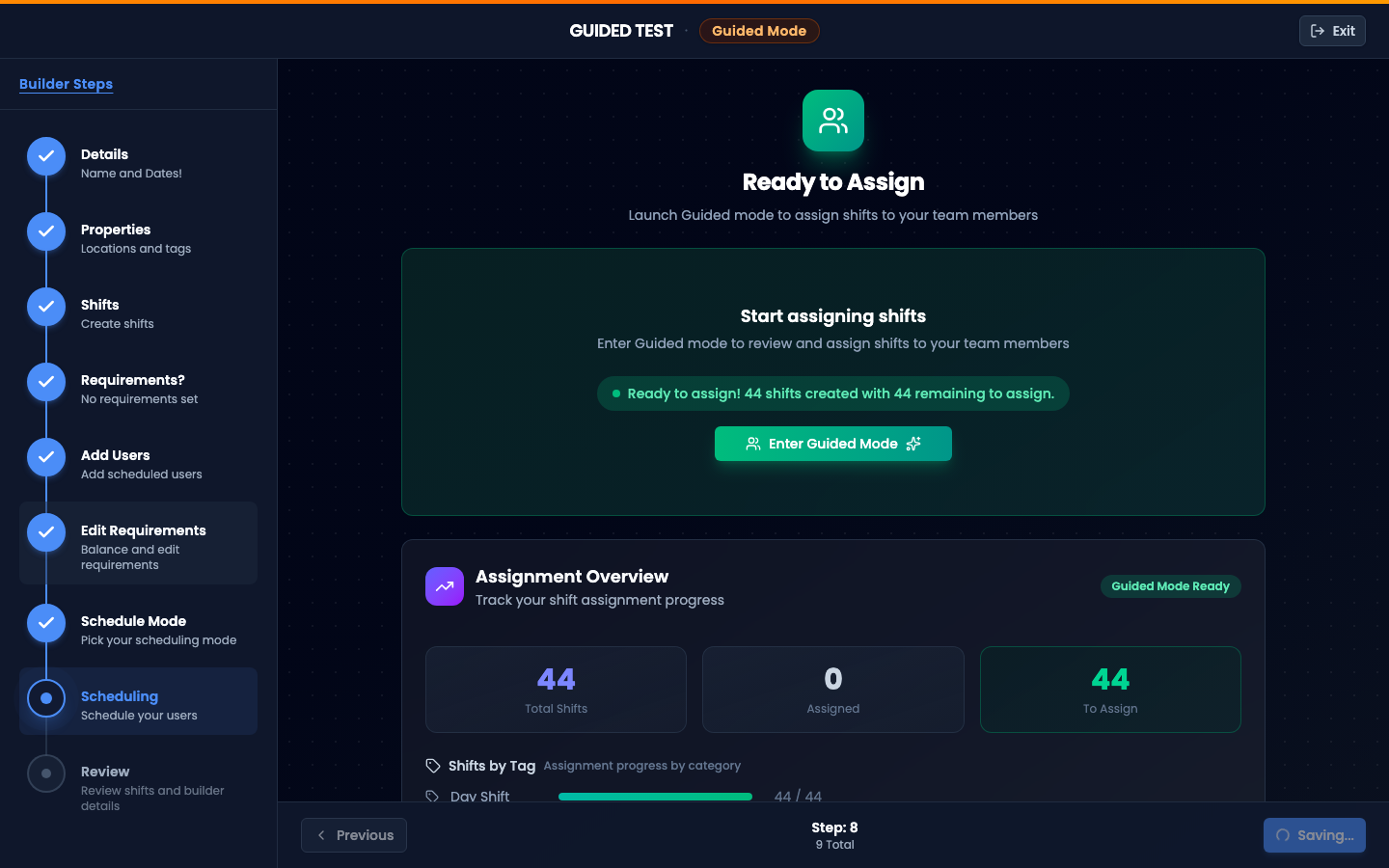
Generate
Check the coverage
Adjust, then publish
AI Schedule Generation FAQ
Does it publish the schedule automatically?
No. It builds a first version for you to look over. Nothing reaches your team until you review it and publish.
What if I don’t like part of what it made?
Change it. The generated schedule is a starting point — you can move shifts, swap people, or run it again with different rules.
What does it use to decide who works what?
Your coverage rules (how many people you need, where, and when) plus your team’s preferences and availability. The more clearly you set those, the better the result.
How do I know everything is covered?
The requirements view shows you, location by location, where you’re fully covered and where there are still gaps.