
The Admin Calendar
The admin calendar shows every shift on your team in one place — and lets you filter it, edit in bulk, and see time-off alongside the schedule.
The full picture
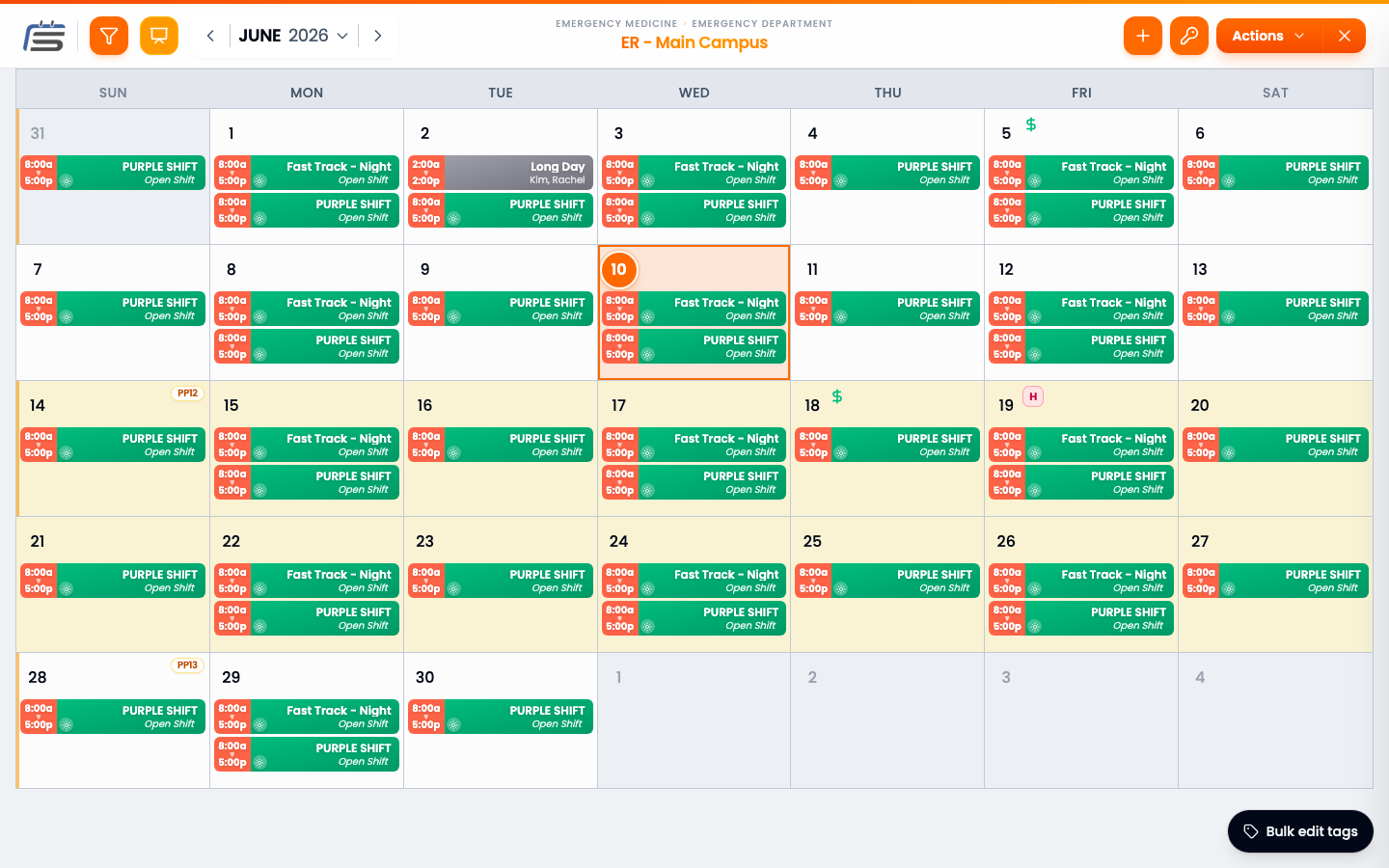
The calendar is your team’s whole schedule, month by month. Every shift, who’s on it, where, and when — all in one view. It’s where you go to see how things are shaping up and to make quick fixes.
Three ways to view it
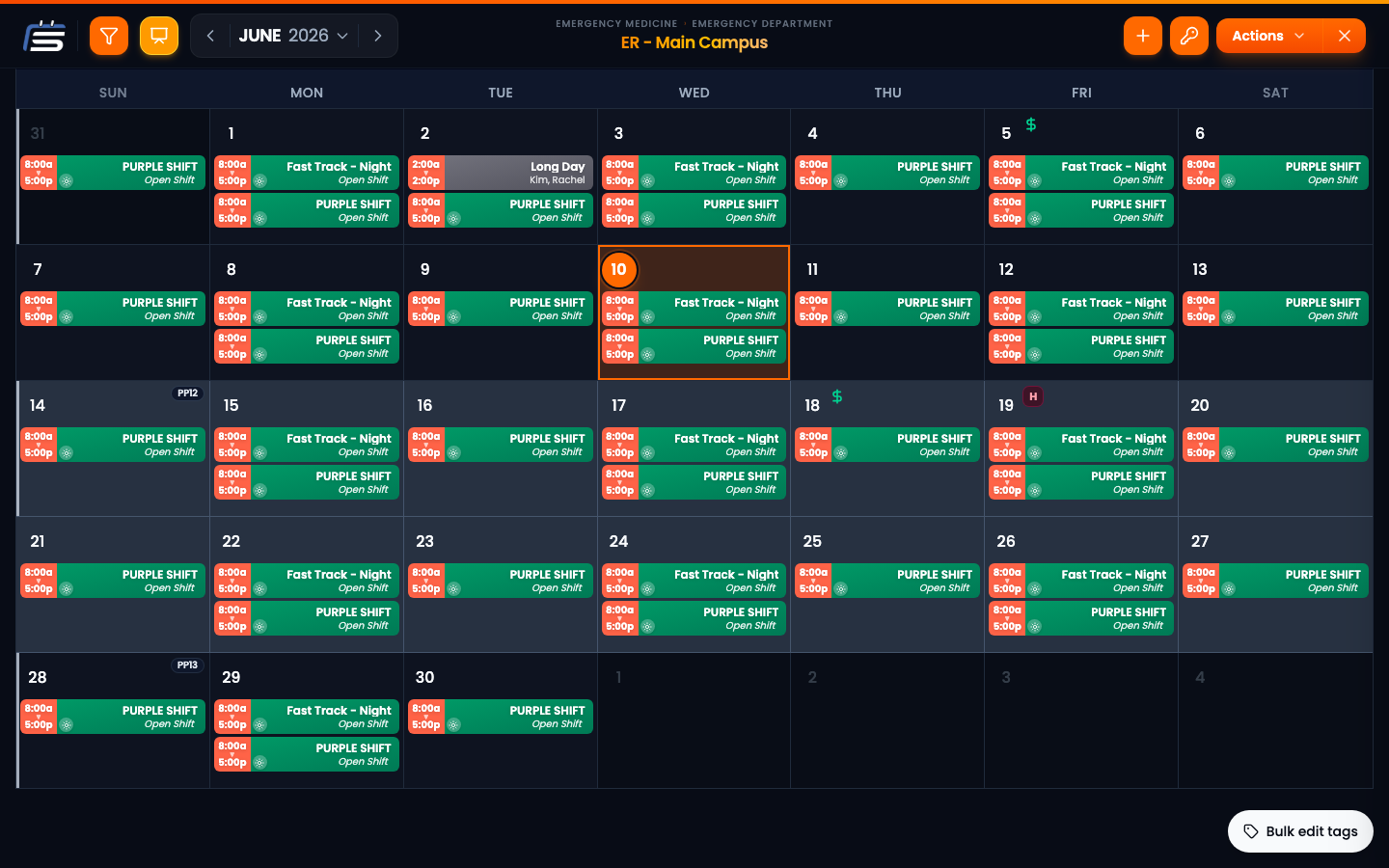
The same month can be laid out three ways. Open the calendar’s Actions menu and look under Display to switch — the calendar remembers your choice.
Classic — stacked rows per day
Timeline — grouped by time of day
Buckets — grouped by location
Filtering the view
Narrow it down
See the whole team
Highlight rules
Where a filter hides everything else, a highlight keeps the whole month visible and just makes what you’re checking glow. Each rule paints matching shifts a color of your choice.
Add a rule
Read the month at a glance
Editing in bulk
Tag many shifts at once
Admin Calendar FAQ
Is this the same calendar my team sees?
It’s the same shifts, but the admin view gives you extra powers — filtering everyone at once, editing several shifts together, and seeing time-off in context.
Can I edit more than one shift at a time?
Yes — for tags. Turn on bulk edit, select several shifts, and add, remove, or replace their tags in one action. Reassigning or removing shifts is done one at a time from the shift itself.
Why would I filter the calendar?
A busy schedule is a lot to take in. Filter by a person, a location, or a tag to focus on just the part you care about right now.